
Card host setup
so a card tap opens your app.
Every card carries a link to your domain. On iPhone, a tap opens your app only when that domain serves Apple's app-site-association file with your Team ID. This page shows which files to host, what to put in them and how to test them.
01Why a domain is needed
Pairing writes a link like https://nfccrypto.mikodes.com/card/<32 hex id> to the card, plus an Android record with the app's package (see Card format).
| iPhone | Android | |
|---|---|---|
| Pair a card, Test a card (inside the app) | Works with no hosting | Works with no hosting |
| Tap a card while the app is closed → the app opens | Needs apple-app-site-association on your domain and the Associated Domains capability. Until then, iOS opens the link in Safari. | Works with no hosting (the Android record on the card). assetlinks.json is optional, for verified App Links. |
The default host nfccrypto.mikodes.com (NFC Crypto) and cryptocard.mikodes.com (CryptoCard) belong to the author. Use your own domain for anything you sell.
02The hosting files
| File | Purpose |
|---|---|
apps/nfc_crypto/docs/nfc/hosting/.well-known/apple-app-site-association | Tells iOS that /card/* links open NFC Crypto. Ships with YOUR_TEAM_ID.com.mikodes.nfccrypto. |
apps/nfc_crypto/docs/nfc/hosting/.well-known/assetlinks.json | Android App Links. Ships with the package com.mikodes.nfccrypto and the placeholder RELEASE_SIGNING_CERT_SHA256. |
apps/nfc_crypto/docs/nfc/hosting/card.html | What a card link shows when the app is not installed or not set up: install, then pair. |
apps/nfc_crypto/docs/nfc/hosting/vercel.json | Example hosting rules for Vercel: /card/:id → card.html, and both .well-known files served as JSON. |
apps/nfc_crypto/docs/nfc/hosting/index.html and shots/ | The author's sample product page. Replace it with your own home page, or leave it out. |
apps/cryptocard_wallet/docs/hosting/ | The same for CryptoCard Wallet: apple-app-site-association for /c/* links (YOUR_TEAM_ID.com.mikodes.cryptocard), card.html and vercel.json (/c/:id). It has no assetlinks.json; Android opens the app from the card's Android record. |
.well-known is hidden in Finder and Explorer. On a Mac press Cmd+Shift+. to show it. Make sure your upload tool copies it.
03Fill in apple-app-site-association
- Find your Team ID. developer.apple.com → Account → Membership details. It has 10 letters and digits; the files call it
YOUR_TEAM_ID.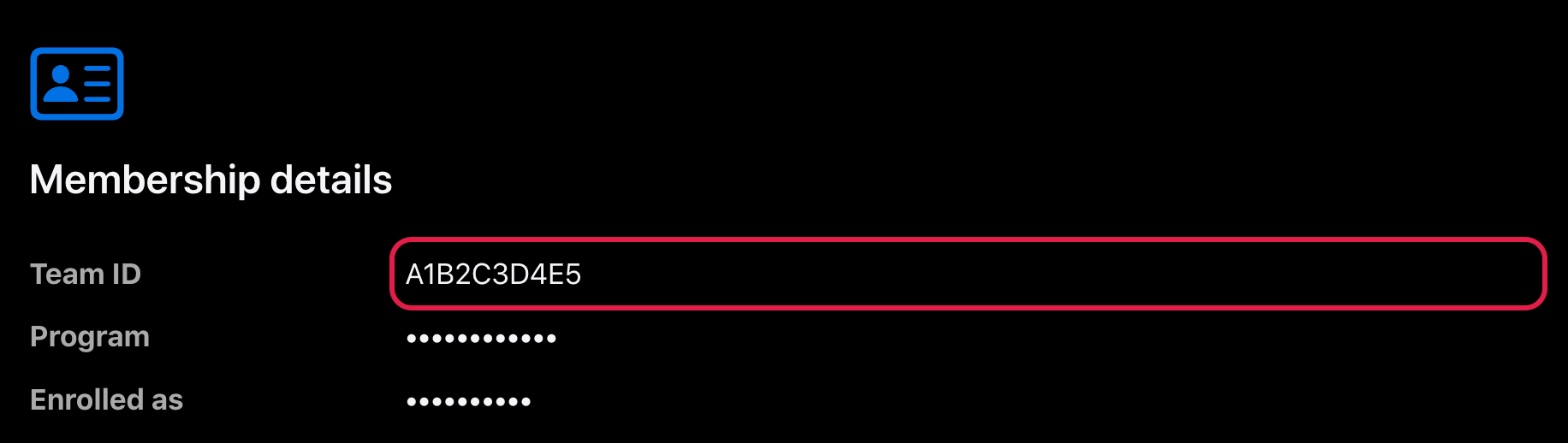
developer.apple.com → Account → Membership details. The Team ID in this screenshot is a sample value; other fields are masked. - Edit the file. Replace
YOUR_TEAM_ID.com.mikodes.nfccryptowith your Team ID, a dot, and your bundle ID. - Keep the path
/card/*for NFC Crypto and/c/*for CryptoCard. The apps write those paths.
The commands on this page are written for macOS and Linux shells. On Windows run them in PowerShell, Git Bash or WSL; iOS builds need a Mac.
{
  "applinks": {
    "details": [
      {
        "appIDs": ["YOUR_TEAM_ID.com.yourbrand.wallet"],
        "components": [
          { "/": "/card/*", "comment": "card links" }
        ]
      }
    ]
  }
}
If both apps use the same domain, put both entries in one file, each with its own path.
04Fill in assetlinks.json (optional)
- Set the package to your Android
applicationId. - Get the SHA-256 fingerprint of the key that signs the app users install. With Google Play App Signing, copy it from Play Console → your app → Setup → App signing → "App signing key certificate" (Google's guide: Use Play App Signing). For your own keystore:
keytool -list -v -keystore your-upload-key.jks -alias your-alias. - Replace
RELEASE_SIGNING_CERT_SHA256with that fingerprint (the form with colons,AB:CD:…).
05Put the files online
- Choose the domain, for example
cards.yourbrand.com, with HTTPS. - Upload the contents of
docs/nfc/hosting/to the site's public root, so the files are athttps://cards.yourbrand.com/.well-known/apple-app-site-associationandhttps://cards.yourbrand.com/.well-known/assetlinks.json. - Serve both files with
Content-Type: application/json, over HTTPS, with no redirect. The file name has no extension; most hosts need a rule for that. - Rewrite
/card/*(CryptoCard:/c/*) tocard.html, so a card link without the app shows the install steps.
On Vercel, vercel.json does steps 3 and 4; merge it into your project's vercel.json. On other hosts (Netlify, Cloudflare, nginx, Apache), add the same two rules in that host's format.
Test from a terminal:
curl -sI https://cards.yourbrand.com/.well-known/apple-app-site-association
# expect: HTTP/2 200 and content-type: application/json
curl -s https://cards.yourbrand.com/.well-known/apple-app-site-association
# expect: your Team ID and bundle ID
iOS fetches this file through Apple's servers when the app is installed, and caches it. After a change, delete and reinstall the app to test.
06Point the apps at your domain
| App | Change |
|---|---|
| NFC Crypto | defaultCardHost in lib/brand/brand_config.dart (or NFC_CARD_HOST in .env), both card intent filters in android/app/src/main/AndroidManifest.xml, and applinks: in ios/Runner/Runner.entitlements and ios/Runner/Runner.debug.entitlements. flutter test test/brand_config_test.dart checks that they agree. |
| CryptoCard Wallet | defaultCardHost in lib/brand/brand_config.dart and the CARD_HOST line in ios/Flutter/Common.xcconfig. Android reads the brand file. |
| NFC Recovery | Add your host(s) to cardHosts in lib/white_label.dart. |
| Card Studio | Settings → Card link hosts, or hosts in studio.config.json. |
| Desk tool | tool/nfc/nfccard --host your.host |
A card carries the host it was written with. If you change the host after cards are out, those cards still point to the old domain. Keep the old domain serving the files, or re-pair the cards.
07Rebrand card.html
card.html says "This is an NFC Crypto card" and tells people to open Settings → NFC Crypto Card → Test a card. Change the name, colours and steps to match your app. Add your App Store and Google Play links once the apps are live.